How to time box with Google Calendar.Drawing blocks on a calendar is easy. Protecting them long enough to finish real work is the hard part — here is a practical system that sticks.
ES
Anna HolmbergJun 5, 20267 min read
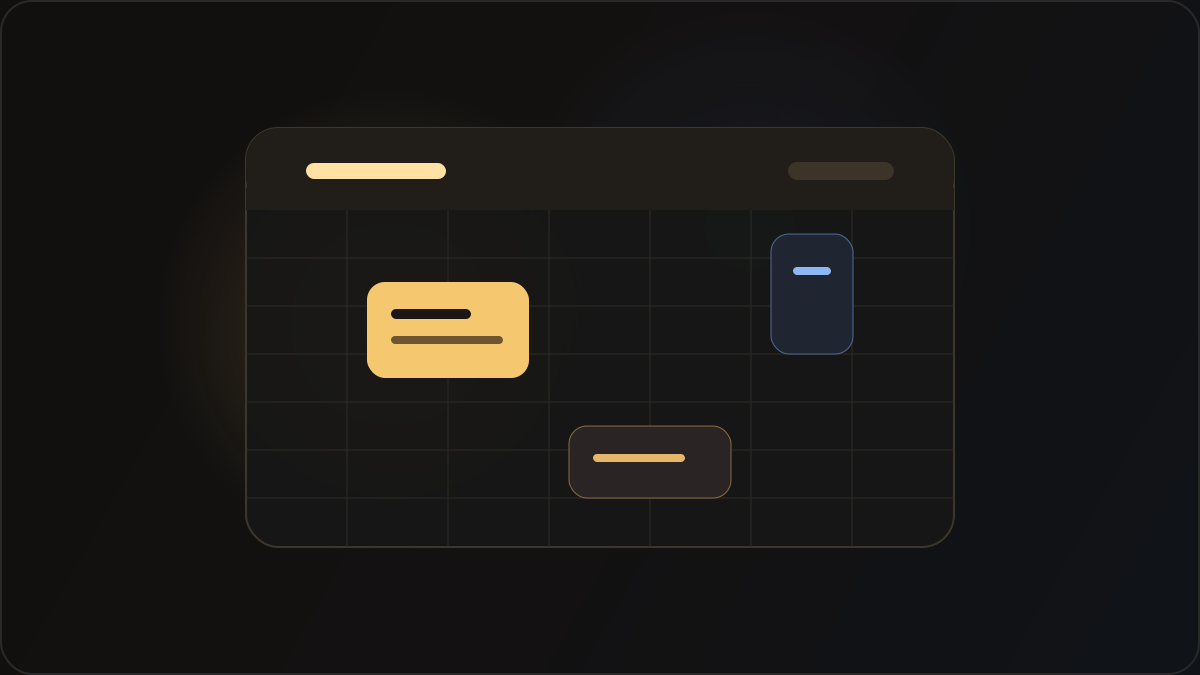
Time boxing sounds simple: assign every hour a job, then do that job. In practice, most calendars become wish lists. Meetings slide in, notifications pull you out early, and open-ended tasks expand to fill whatever space you left them — a pattern Parkinson described decades ago and most knowledge workers still live inside every week.Why time boxing fails without guardrailsGoogle Calendar is excellent at showing you where your time should go. It is less excellent at stopping the world from stealing that time once the day starts. Back-to-back meetings, vague all-day holds, and blocks with no clear outcome are the usual culprits. You end the week having "been busy" without moving the one project that actually mattered.Common failure modesEven well-drawn calendars break down in predictable ways. You start deep work at 9:00, feel productive, and miss the 10:55 reminder that you have a call in five minutes. Native notifications are easy to silence. Slack is always louder than Calendar. By the time you context-switch, your focus block is already gone.Another trap: blocks without duration estimates. If you do not know how long the work takes, you cannot know whether the box is big enough. Pair every significant block with a realistic time estimate — the same metadata you would put on a task in OmniFocus or Things.How Minus closes the gapMinus.app integrates with Calendar.app and was built for the moment when focus runs right up against the next obligation. Meeting Siren — fullscreen Calendar Notifications — interrupts your work when it is actually meeting time, with the link you need to join. No polite banner you can ignore for twenty minutes.For the work inside your blocks, Extreme Focus Mode connects your calendar discipline to your task list. Drag a task with a duration estimate onto Minus and it launches a smart timer matched to that estimate. You are not guessing how long is left — the block on your calendar and the timer on your desktop are telling the same story.Time boxing works when your tools respect the boundary between focus and everything else.Start tomorrow morningOpen Google Calendar tonight and block the first 90 minutes of tomorrow for one named outcome. Add the estimate. In the morning, drag that task into Minus, start the timer, and do not open your inbox until the block ends. One defended block beats a perfect-looking week you never actually lived.
“A calendar block is only real if something defends it when the rest of your day tries to eat it alive.”
A Google Calendar workflow that worksStart with structure, not granularity. Theme your days where you can — one day for deep creative work, one for meetings, one for admin. Within each day, block your highest-leverage work first, before inbox and chat get a vote.Create focus blocks with a specific outcome in the title, not just "Work on project."
Leave 10–15 minutes between meetings so context-switching does not eat the next block.
Color-code focus time differently from meetings so the week reads at a glance.
Decline or shorten meetings that land inside protected blocks — or move the block, deliberately, the night before.
Time boxing works when your tools respect the boundary between focus and everything else.minus technologies, llc8605 Santa Monica Blvd. Suite 8785, West Hollywood, CA 90069+1 424-209-9807support@minus.io